From installation to your first saved file.
Start with Free. No purchase required.
Install KeepTok
Download the Windows 10 / 11, 64-bit installer from this website. The current public installer is unsigned. If Windows blocks it, do not disable your antivirus or system protections.
Choose a save folder
Open Settings and choose a writable download folder with enough free space. Save your settings.
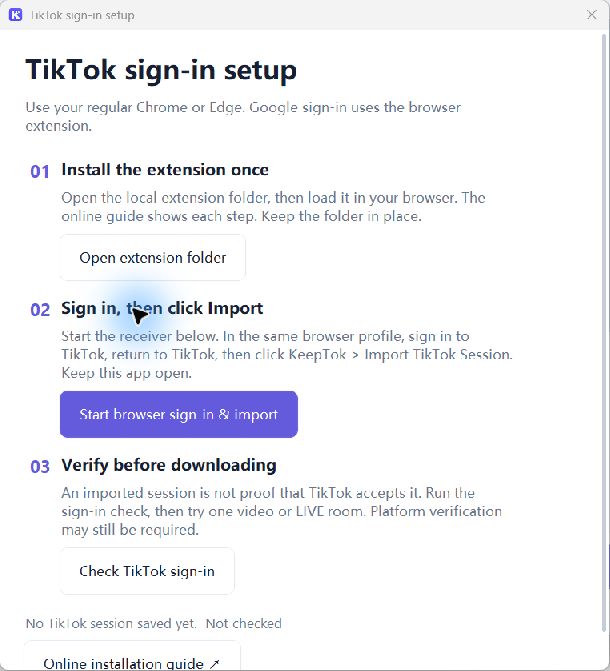
Set up TikTok sign-in
Install the KeepTok extension in your regular Chrome or Edge. Start Browser sign-in & import in KeepTok Settings. Sign in to TikTok in that browser, return to TikTok, then click Import TikTok Session in the extension. Google sign-in uses the same route.
Check sign-in
Click Check sign-in in Settings. Saved only means the session was stored; verified means the platform check passed. Follow any network or verification instructions.
Record your first LIVE
Use a stream you own or have permission to record. Open LIVE room parsing, paste the live URL, resolve it, choose an available quality and start recording. Keep KeepTok running and your computer awake. Free allows two manual recordings daily, up to 30 minutes each.
Check the saved file
Stop recording and wait for the task to finish. Open File Manager or the save folder and play the file to check picture and audio. OBS relay and local recording are separate actions.
Client workflow demo
This existing clip shows the client and OBS relay workflow. It does not show fresh installation, sign-in or the final saved-file check. Use the checklist above for those steps.