What this guide covers
This page explains how long a local TikTok LIVE recording can run in KeepTok: plan limits, daily quotas, 30-minute segments, disk space and the need to keep the PC awake. It is not a first-recording walkthrough, and it is not a full list of unexpected-stop fixes.
Local recording and Connect to OBS are separate actions. Starting a relay does not, by itself, save a KeepTok file or consume a recording-time allowance.
General LIVE recording guide ↗ · Record TikTok LIVE without OBS ↗ · If a recording stopped early ↗
Plan limits for manual recording
A KeepTok recording lasts only while the LIVE stays accessible, your plan still allows it, the disk has space, and this PC stays awake with KeepTok running. These are the current product limits described on the plans page:
- Free: 2 manual recordings per UTC day, each up to 30 minutes.
- Lite: 5 manual recordings per UTC day, with a longer per-session limit, still without automatic recording.
- Personal: no daily count quota for manual recordings, a longer per-recording limit, and automatic recording when a monitored creator goes live.
- Pro: no daily count quota and no plan-imposed recording length cap, plus automatic recording and activation on two computers.
Daily quotas reset at 00:00 UTC (08:00 Beijing time). Hitting a plan limit is expected product behaviour: already written files are kept, and the job stops. Confirm live plan details on the download page.
Why one LIVE may become several files
In Settings → Downloads & recording, segment minutes controls how a long session is split. If segment minutes is greater than 0 (the default is 30), KeepTok writes multiple .mkv files under Save folder\Live\<creator name>\. Several files after a two-hour LIVE can be normal, not a crash.
Open Tasks or Files, play each segment, and check picture and audio. Already written segments stay on disk if the job later reaches a plan limit, the stream ends, or the recording is stopped.
Before you start a longer session
- Install KeepTok on 64-bit Windows 10 or 11 and confirm your plan in Settings → About & license.
- Choose a writable Save folder with enough free space. LIVE files go to Save folder\Live\<creator name>\.
- If TikTok requires sign-in to watch the LIVE, import a session and run the sign-in check. A Google login alone is not a TikTok session.
- Open the LIVE in your usual browser first. The creator must be broadcasting now, and the room must be accessible on your network.
- Leave KeepTok running or in the tray, and prevent Windows from sleeping for the whole session. Exiting the app stops the job.
Keep Windows awake while recording ↗ · Import a TikTok session ↗
Start, watch and close the recording cleanly
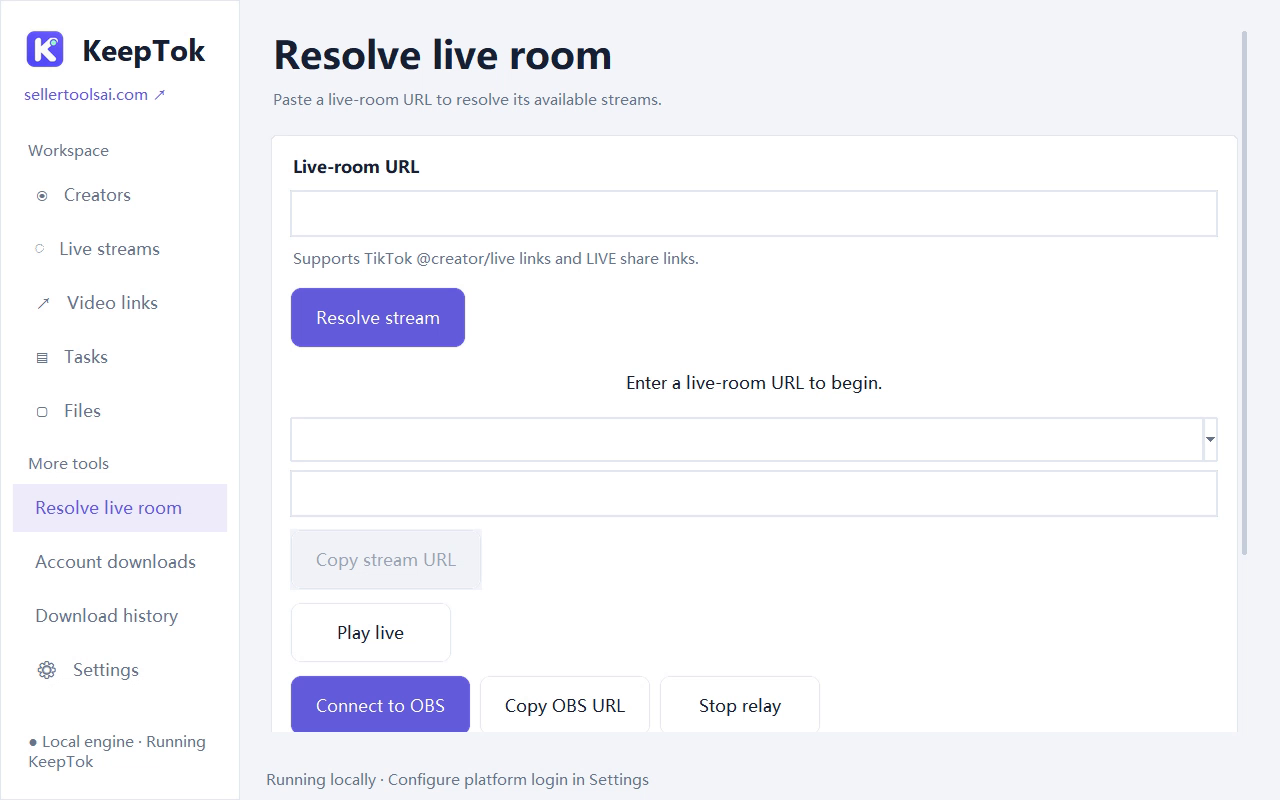
Open Resolve live room, paste the current LIVE URL, choose Resolve stream, then pick an available quality. Available resolution depends on TikTok and the original broadcast; choosing an HD-labelled source does not increase quality beyond what the broadcaster provides.
Click Start recording—not only Connect to OBS. You should see the job in Tasks, with a Recording status while it runs. When you are finished, click Stop recording and wait until the task finishes before opening the files.
If the recording is shorter than you expected
First reopen the original TikTok room in your browser. If the LIVE has ended, is private or is unavailable, KeepTok cannot continue or recover it. Then check whether you reached a plan limit, the PC slept, the disk filled up, or the task shows a reconnect or source error.
Already written files are kept. If the creator is still live and your plan still allows it, resolve the current room again and start a new recording.
TikTok LIVE recording stopped? Windows fixes ↗ · Keep Windows awake while recording ↗
FAQ
Does Free allow a one-hour TikTok LIVE recording? Not in a single manual session. Free allows up to 30 minutes per manual recording, twice per UTC day.
Why do I have several files for one LIVE? If segment minutes is greater than 0 (the default is 30), KeepTok writes multiple .mkv files. That is expected for a long session.
Does Connect to OBS use the same time limit? No. Plan recording limits apply to KeepTok’s local recording. Connect to OBS does not, by itself, save a KeepTok file.
Related guides
How to record TikTok LIVE on Windows ↗ · Record without OBS ↗ · Automatic LIVE recording ↗ · Free vs paid plans ↗