What this guide covers
This walkthrough is for installing KeepTok, a local TikTok video downloader and LIVE recorder, on 64-bit Windows 10. It covers system requirements, the official installer, Windows SmartScreen or “unrecognized app” prompts, and what to do at first launch. After KeepTok is running, use the get-started guide to download your first video.
The same official installer also supports 64-bit Windows 11. 32-bit Windows 10 is not supported. The current desktop release focuses on TikTok only.
System requirements
- 64-bit Windows 10 or Windows 11. This page focuses on Windows 10.
- The KeepTok 1.1.14 installer is approximately 199 MB. FFmpeg and the built-in player are included in the full desktop package, so you do not need to find those components separately.
- A writable local folder with enough free space for the videos or recordings you plan to keep. Prefer a local disk over a full, cloud-only path.
- An internet connection for the download, sign-in checks and source access. Finished files stay on this PC; KeepTok is not a cloud recorder.
1. Download the official installer
Open the official KeepTok download page on sellertoolsai.com and get the current Windows installer. Confirm that the file came from sellertoolsai.com or downloads.sellertoolsai.com. Do not use a repackaged copy from an unknown site, message or email.
2. If Windows 10 shows a SmartScreen or unrecognized-app warning
The current public installer is unsigned. Code signing has not been completed, so Windows 10 may show Microsoft Defender SmartScreen or an “unrecognized app” message such as “Windows protected your PC.” That warning means Windows has not verified a publisher signature. It is not, by itself, a malware verdict.
- Confirm again that you downloaded the installer from sellertoolsai.com or downloads.sellertoolsai.com.
- Only if you trust this official file after that check, choose More info, then Run anyway.
- If the warning reports malware, or you cannot confirm the download source, stop. Do not install the file. Contact support and use the official site again.
Do not disable Microsoft Defender, your antivirus, SmartScreen or other Windows protections to force the installer through. Those tools should stay on. A publisher-verified installer is not yet available.
3. Finish setup and first launch
Run the official installer and open KeepTok when setup finishes. In Settings, choose a writable save folder and save your changes. FFmpeg and the built-in player are already part of the desktop package.
The Free plan does not require activation. It includes 10 video downloads per day, 2 manual recordings per day and 30 minutes per recording, with 1 concurrent download and link downloads. Daily quotas reset at 00:00 UTC (08:00 Beijing time). Paid Lite, Personal and Pro plans are purchased on the website with PayPal; enter the activation key in Settings → About & license. Confirm live plan details on the download page.
If TikTok requires sign-in to view a post or LIVE, install the official KeepTok browser extension, sign in to TikTok in Chrome or Edge, then import the session and run the sign-in check. A Google login alone is not a TikTok session.
Continue with the get-started guide ↗ · TikTok sign-in extension ↗
After KeepTok is installed
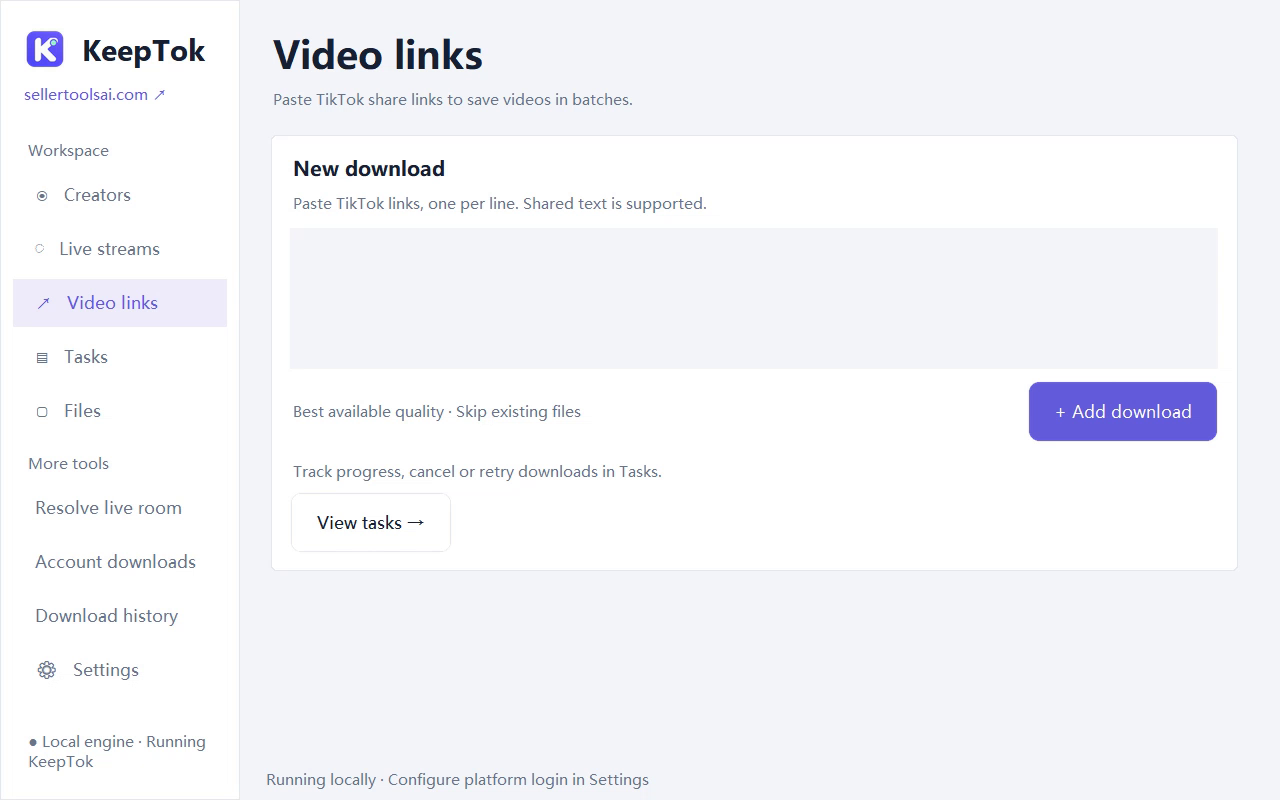
- Paste a supported video link you are allowed to save, then open the file from Tasks. The current desktop version does not support TikTok photo-post or slideshow downloads.
- KeepTok does not offer pause or partial-file resume; a retry starts that file again.
- For LIVE recording, your PC must stay awake and KeepTok must keep running. Hiding the window to the tray is fine.
Cancel or retry a download ↗ · Watch TikTok videos offline ↗
Related guides
Download KeepTok for Windows ↗ · Install on Windows 11 ↗ · How to download TikTok videos on Windows ↗ · KeepTok home ↗