Why a local backup matters
A local backup is a copy you control: campaign assets, your published posts, or a creator archive you are allowed to keep. Platform pages can change, posts can be removed, and a phone-only library is hard to search or edit later. KeepTok writes finished videos to a folder you choose, so you can back them up again to a disk or drive you already use.
This is different from pasting links into an unknown website. The files stay on your PC, and you decide the folder structure. For a broader comparison, see the local vs online guide.
What this guide covers — and what it does not
- Covered: saving individual video posts with a link, and (on Personal or Pro) browsing your own profile to queue a batch of videos.
- Not covered: TikTok photo-post / slideshow downloads. The current desktop version does not support those. Use the normal video workflow for supported posts.
- Availability still follows what your signed-in browser session and network can open. If a post is private, removed or blocked in your usual browser, KeepTok cannot invent access.
Before you start
- Install KeepTok for 64-bit Windows 10/11 from the official download page.
- In Settings, choose a writable save folder on a local disk with enough free space.
- If TikTok requires sign-in to view your posts, import the session with the KeepTok browser extension and run the sign-in check. A Google login alone is not a TikTok session.
- Have the profile or post URLs you are allowed to archive ready. Prefer full https://www.tiktok.com/ links.
1. Save individual posts with a link
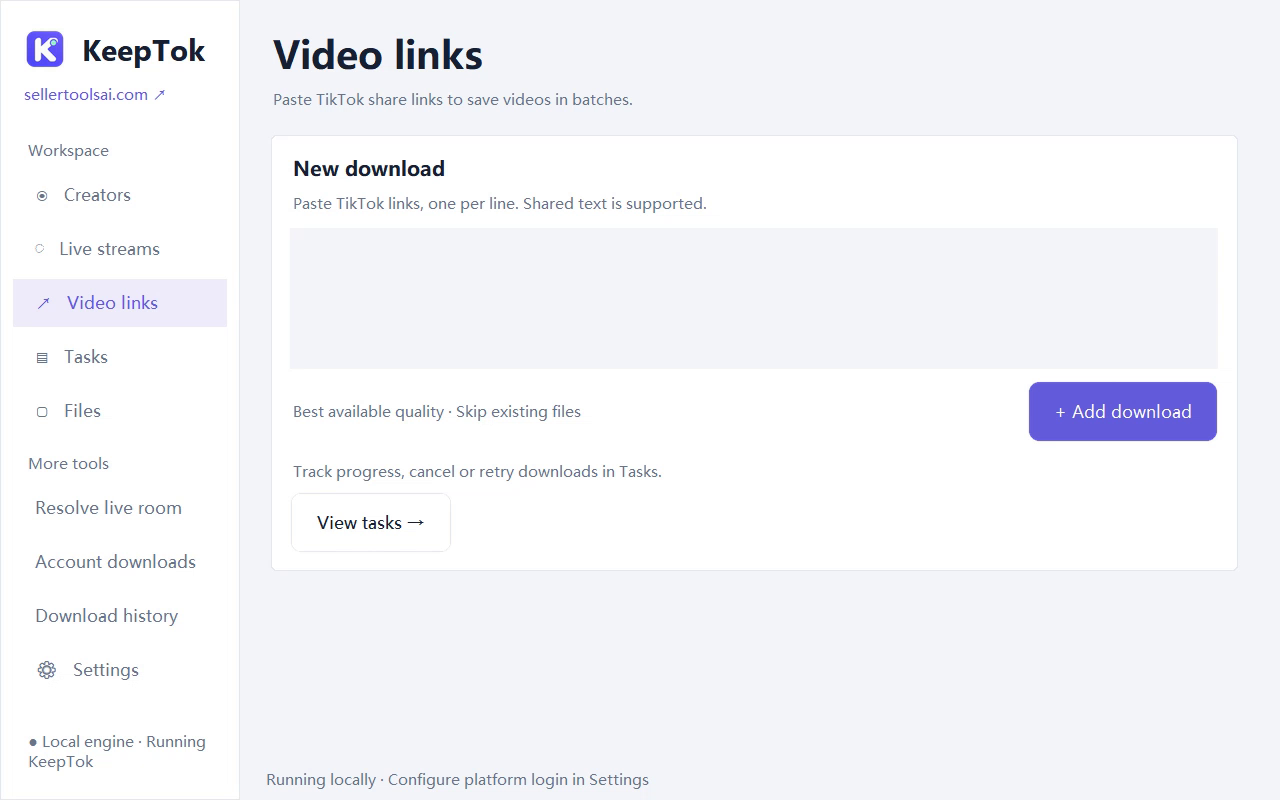
On the link-download page, paste one supported video URL at a time, submit it, then open Task Center for progress, cancel and retry. This path is available on Free, with a daily allowance, and is enough when you only need a handful of your own posts.
When a task finishes, select it and open the output folder to confirm the file is there and plays. KeepTok does not offer pause or partial-file resume; a retry starts that file again.
2. Archive your profile in a batch (Personal or Pro)
If you need many of your own posts, use the Personal or Pro creator workflow instead of pasting every link. Open the account / batch tools, enter your profile, browse the video posts, select the ones you want, and queue them. Downloads still run in Task Center.
Select only posts you are backing up on purpose—recent uploads, a campaign window, or the full public video list as the app lets you load more pages. Photo posts are not selectable. Stay at the PC or leave KeepTok running until the queue settles.
Organize and verify the local files
- Use a clear folder structure, for example by year and month, or by campaign name.
- Play a few files in KeepTok or your usual player before you rely on the archive.
- Copy the finished folder to a second disk if the backup matters. KeepTok stores files locally; it is not itself a cloud backup service.
Plans and daily limits
Free includes a daily link-download allowance (10 video downloads per UTC day) so you can start a backup without buying a plan. Lite raises the daily link quota. Account batch downloads of creator or profile posts are included in Personal and Pro.
Daily quotas reset at 00:00 UTC (08:00 Beijing time). Hitting a Free limit is expected product behaviour, not a crash. Confirm live plan details on the download page.
Free vs paid KeepTok plans ↗ · Download KeepTok for Windows ↗
If a backup task fails
Read the Task Center message first. An invalid or removed link, an expired session, HTTP 403/429 and a folder permission error need different fixes. Re-open the post in your usual browser, re-check sign-in, and confirm the save folder is writable.
Related guides
How to download TikTok videos on Windows ↗ · Batch download TikTok videos ↗ · Watch TikTok videos offline ↗ · Download for Windows ↗