Start with the exact task message
Open Task Center, select the failed task and read its message before retrying. A parsing error, an HTTP error and a folder permission problem have different causes. Record the app version and the short error message for support. Hide creator links, cookies, activation keys and personal file paths in screenshots.
The link cannot be parsed
Open the same link in your usual browser. If TikTok says the video is unavailable, private or removed, KeepTok may not be able to download it either. Copy a fresh share link from the video, not a search-result page or a screenshot of the address. For a LIVE, use the creator’s current LIVE page and confirm they are broadcasting now.
The current public desktop release focuses on TikTok. A link from another platform, a profile URL submitted where a video URL is expected, or a malformed URL can fail before downloading begins. Use the feature that matches your link.
Sign-in is saved but downloads still fail
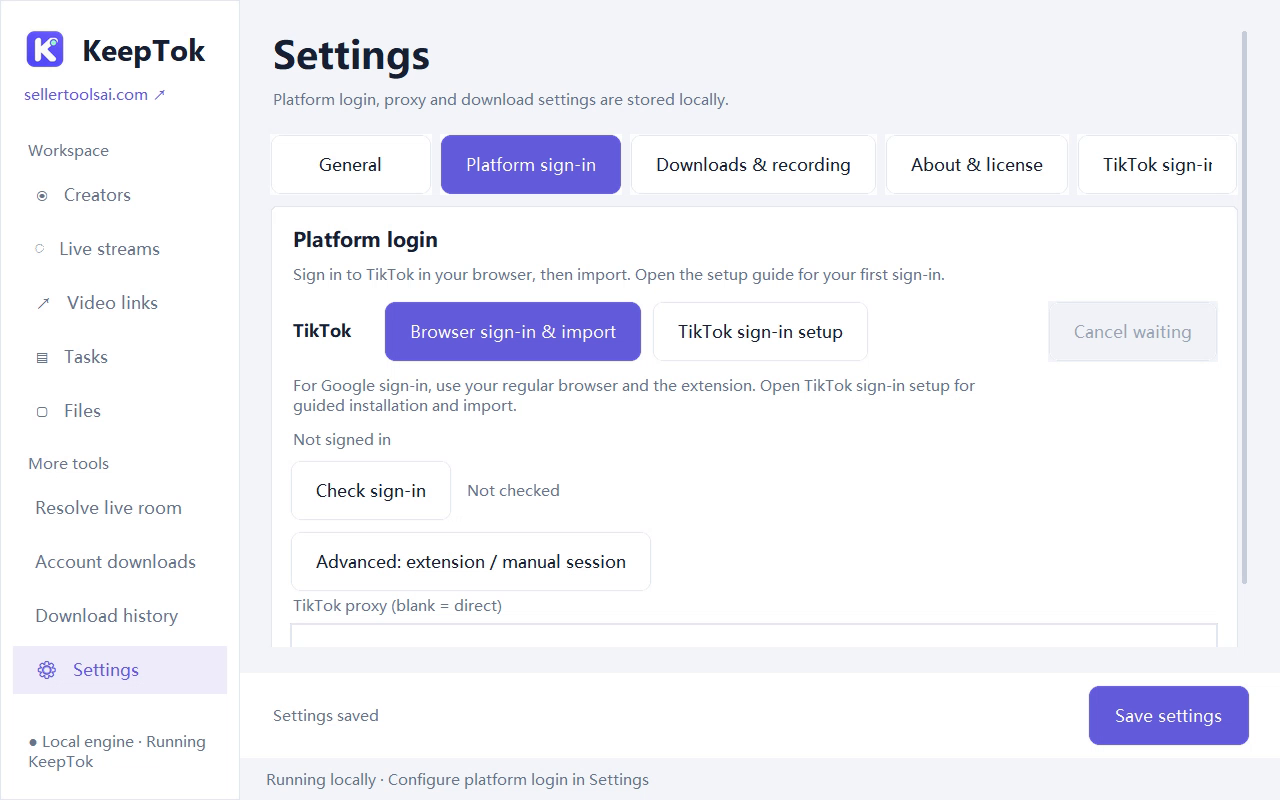
Saved means KeepTok stored an imported session; it does not prove that TikTok still accepts it. In Settings, open Platform sign-in and run the sign-in check. If needed, start Browser sign-in & import again, complete TikTok login in the browser profile that has the extension, return to TikTok and import the current session.
If you use Google to sign in, finish the Google flow inside your normal browser and return to TikTok. Signing in only to Google is insufficient. Never send passwords, verification codes or cookies to support.
Follow the extension setup guide ↗Network errors or HTTP 403 / 429
Check whether the original content loads on the same computer and network. Review the proxy setting in KeepTok if your normal browser uses a different network route. A proxy address must include its scheme, such as http://127.0.0.1:PORT, and the local proxy service must actually be running. An old port can fail even when the browser still works.
An HTTP status alone cannot establish the cause. Access restrictions, an expired source URL or platform throttling may be involved. For repeated throttling, pause requests and retry later; do not keep creating parallel tasks or repeatedly refreshing sign-in. KeepTok does not promise access to restricted content.
The task finishes but you cannot find or play the file
Check the save folder configured in Settings, then select the completed task and open its output folder. Do not assume it used a folder chosen after the task started. Make sure the destination is writable and has enough free space. A cloud-synced folder, removable disk or protected Windows folder may introduce extra failures.
For recordings, stop cleanly and wait for the task to finish before opening the result. Segmented recordings may create several files. Check both video and audio, and preserve the original file when reporting an issue. Do not rename an extension merely to make a player open it.
The LIVE stops or never starts
The creator must be live and accessible now. KeepTok cannot recover an ended LIVE unless you already saved it. Resolve the current room again if a stream address expires. Keep the PC awake and the app running. An OBS relay is separate from local recording; connecting to OBS alone does not create a saved file.
Check the OBS relay workflow ↗Limits, version and the next support step
Check the plan shown in Settings → About & license. Free has a daily video-download allowance and manual-recording limits; reaching them is different from a network failure. Check for updates using the official website or the app’s update checker. Avoid unofficial repackaged installers.
If the issue remains, send support the KeepTok version, Windows version, what you tried and a redacted task message. The diagnostic export is optional and should be reviewed before sharing. Do not include login sessions, full activation keys, payment passwords or other people’s private content.
Contact KeepTok support ↗