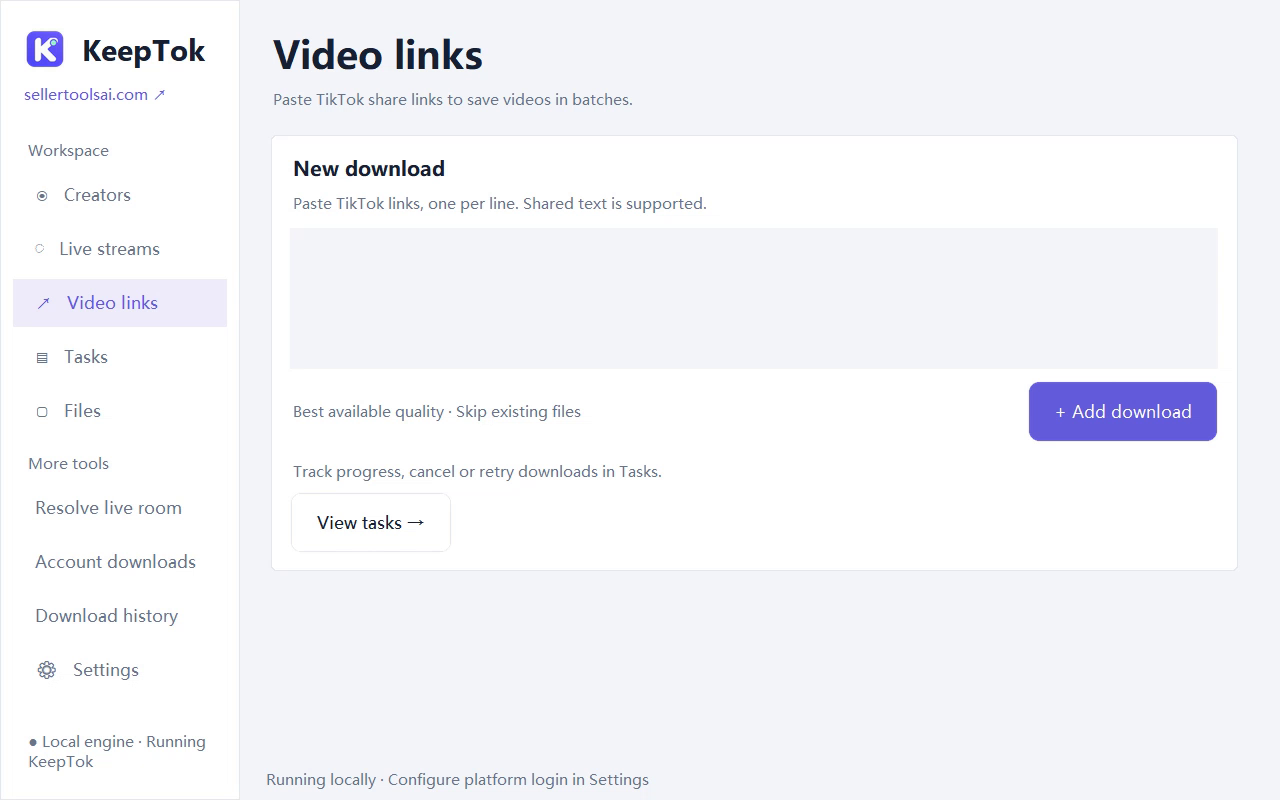
What this guide covers
When a download or recording finishes, the file is already on this computer. This walkthrough shows the default Save folder, the Download and Live subfolders, and how to open a result from Tasks or Files. It does not move older files.
If you want new jobs to go to another disk, change the Save folder first, then start a new task. If a task failed, read the message in Tasks before searching for a file that may not exist.
Change the download folder ↗ · Watch TikTok videos offline ↗
Where KeepTok writes files
The first time you use KeepTok, the default Save folder is a DouK folder inside your Windows Downloads directory—for example, C:\Users\<you>\Downloads\DouK. You can see the current path in Settings → Downloads & recording.
One Save folder setting is used for both jobs, with different subfolders:
- Video downloads go to Save folder\Download\<creator name>\.
- LIVE recordings go to Save folder\Live\<creator name>\, usually as .mkv files. If segment minutes is greater than 0 (the default is 30), a long LIVE is split into several files.
1. Open the completed task in Tasks
Open Tasks (Task Center). Select the finished download or recording, then use the control that opens the output folder. Play the file to check both picture and sound.
If the task is still running, wait until it finishes. If it failed, read the exact message first; there may be no complete file to find yet. Hide creator links, cookies and personal paths in any screenshot you send to support.
2. Browse the same job in Files
Open Files to browse saved media inside KeepTok. Select a video or LIVE recording and play it with the built-in player. Closing the player window only stops playback; it does not delete the file.
You can also open the same file in File Explorer with a player already installed on Windows. Once the task has finished, playback does not require TikTok to stay open or the PC to stay online.
3. Check the Save folder in File Explorer
If you cannot see the task, open the Save folder shown in Settings and look in Download\<creator name>\ or Live\<creator name>\. LIVE files are often .mkv, not .mp4, so a filter that shows only MP4 files will hide them.
Changing the Save folder later does not move files already on disk. If you changed the path after a job started, that task may still have written to the previous folder—including the default Downloads\DouK location.
If you still cannot find the file
Work through this short checklist before starting the same job again:
- Confirm the task finished successfully. A failed, cancelled or still-running job may not have a complete file.
- Look in both the current Save folder and the previous location if you changed the path.
- For a long LIVE, expect several files when segment minutes is greater than 0. Open each segment from Tasks or Files.
- A cloud-synced folder, removable disk or protected Windows folder can delay or hide a file. Prefer a local, writable disk for new jobs.
- Do not rename a file extension merely to make a player open it. Preserve the original file if you need to report a playback problem.
FAQ
Where does KeepTok save TikTok videos by default? In a DouK folder inside your Windows Downloads directory, such as C:\Users\<you>\Downloads\DouK, until you change the Save folder.
Are LIVE recordings saved in the same folder as video downloads? They share the same Save folder, but videos go under Download and LIVE recordings go under Live, usually as .mkv files.
Can I play a saved file if I am offline? Yes, after the task has finished. Use KeepTok’s built-in player or a Windows player that supports the file type.
Related guides
Change the download folder ↗ · Watch TikTok videos offline ↗ · Back up your TikTok videos ↗ · Troubleshooting checklist ↗