What this guide covers
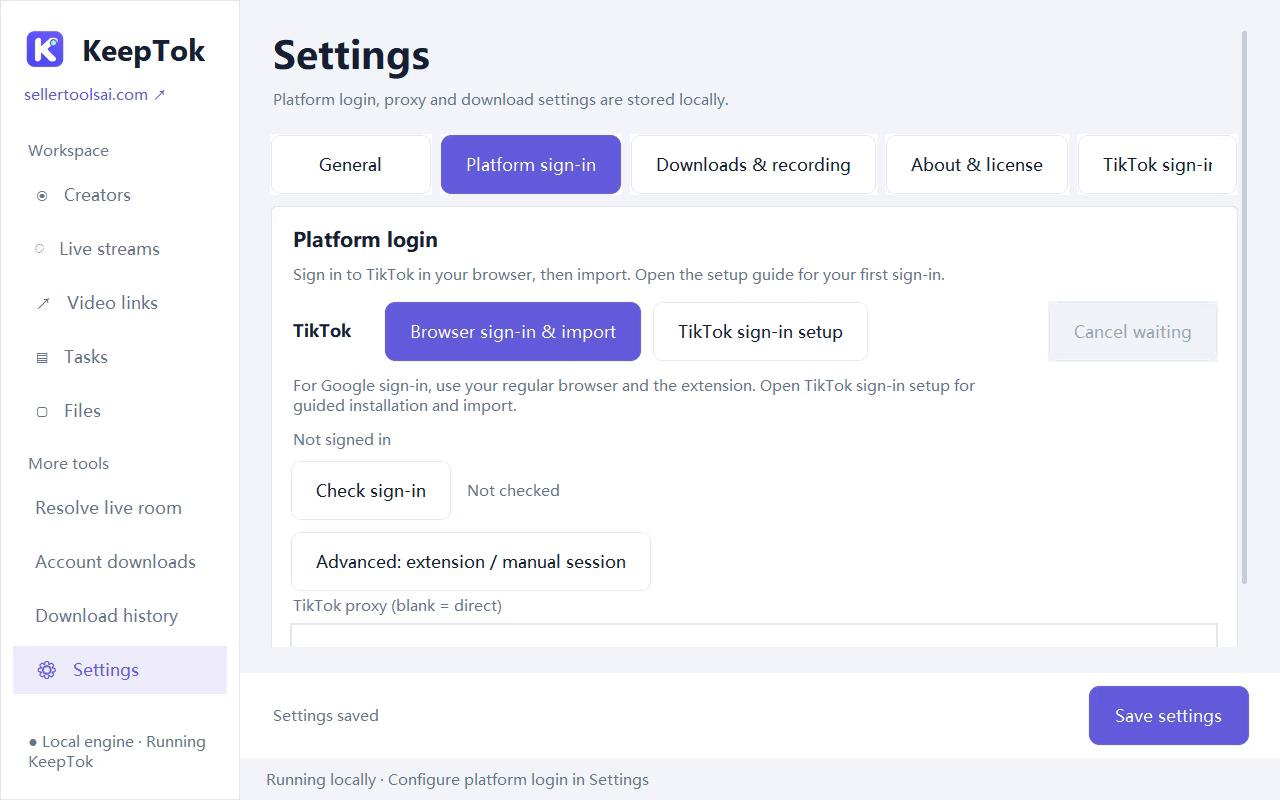
Some TikTok downloads and LIVE recordings need a valid platform login. This walkthrough shows the current KeepTok path: install the official extension in the browser you already use, start Browser sign-in & import in Settings, sign in to TikTok, import the session, then click Check sign-in.
It is a deeper look at the sign-in step from the quick start. If you still need to install KeepTok or save a first file, start there, then return here when a task asks for a session or the sign-in check fails.
Why KeepTok asks for a session
A session is a copy of the TikTok login state from your regular Chrome or Edge profile. KeepTok uses it only on this computer. Availability still depends on the original post or LIVE, your account, your network and platform changes.
You may not need a session for every public link, but many requests fail until a current, verified login is imported. If the same URL does not open in your browser while you are signed in, KeepTok cannot fetch it either.
Before you start
- Install KeepTok on 64-bit Windows 10 or 11 from the official download page.
- Use the Chrome or Edge profile where you normally open TikTok. Importing from a different profile can store the wrong account.
- You will complete any TikTok or Google verification yourself in the browser. KeepTok does not ask you to disable security tools.
1. Install the official KeepTok extension
In your regular Chrome or Edge, install the official KeepTok extension from the product’s extension guide. Do not use a repackaged add-on from an unknown site.
Leave the extension enabled in that same browser profile. If you use more than one profile, confirm the extension is installed where you will sign in to TikTok.
2. Start Browser sign-in & import
Open KeepTok Settings and start Browser sign-in & import. Follow the on-screen prompt to use the browser profile that has the extension.
Stay on this official path. Do not export cookies by hand, copy DevTools values, or send a session file to anyone, including support.
3. Sign in to TikTok, then import the session
In that browser, sign in to TikTok. If you use Google to sign in, finish the Google flow there and return to TikTok. A Google login alone is not a TikTok session.
When TikTok is open and you are signed in, click Import TikTok Session in the KeepTok extension. Return to KeepTok when the import finishes.
4. Run the sign-in check
In Settings, click Check sign-in. Read the result carefully:
- Saved only means KeepTok stored an imported session. It does not prove that TikTok still accepts it.
- Verified means the platform check passed at that moment. This is the status you want before retrying a failed download or LIVE job.
If the check asks you to complete another network or verification step, do that in the same browser and import the session again. Then run Check sign-in once more.
If sign-in or later downloads still fail
Open the same TikTok link in the browser profile you just used. If the video or LIVE is private, removed or blocked there, KeepTok cannot save it. Import a fresh session if you signed in again, changed accounts, or some time has passed.
Then confirm the Save folder is writable and read the exact task message before retrying. Do not create many parallel jobs or repeatedly refresh sign-in in a tight loop.
FAQ
Do I have to sign in for every download? Not always. Some public links work without a session. If a task fails or the app asks you to sign in, import a current session and run the check.
Why is the status Saved but not verified? Saved only means the import was stored. Run Check sign-in, complete any extra verification in the browser, and import again if needed.
Can I paste cookies or a token instead? No. Use Browser sign-in & import and the official extension. Never email passwords, verification codes, cookies or a full activation key.
Related guides
How to download TikTok videos on Windows ↗ · TikTok sign-in extension ↗ · Troubleshooting checklist ↗ · Install on Windows 11 ↗