Why a TikTok LIVE recording can stop
KeepTok can only record while Windows is awake, KeepTok is running, and the stream remains accessible. If the PC sleeps, hibernates or shuts down, or if you exit the app, the local job stops. Hiding KeepTok to the tray keeps tasks running; closing the app does not.
Other normal stops include the creator ending the LIVE, a network or access problem, a full or unwritable save folder, or reaching a plan limit such as Free’s 30-minute manual recording cap. This guide focuses on Windows power and whether the app is still running. For the recording steps themselves, use the LIVE guides.
How to record TikTok LIVE on Windows ↗ · Automatic LIVE recording ↗
1. Leave KeepTok running — the tray is enough
Start the recording or, on Personal or Pro, enable automatic recording first. Then you may hide the window to the system tray. Tray mode is designed so monitoring and recording can continue. Exiting KeepTok, ending the process, or signing out of Windows stops the work.
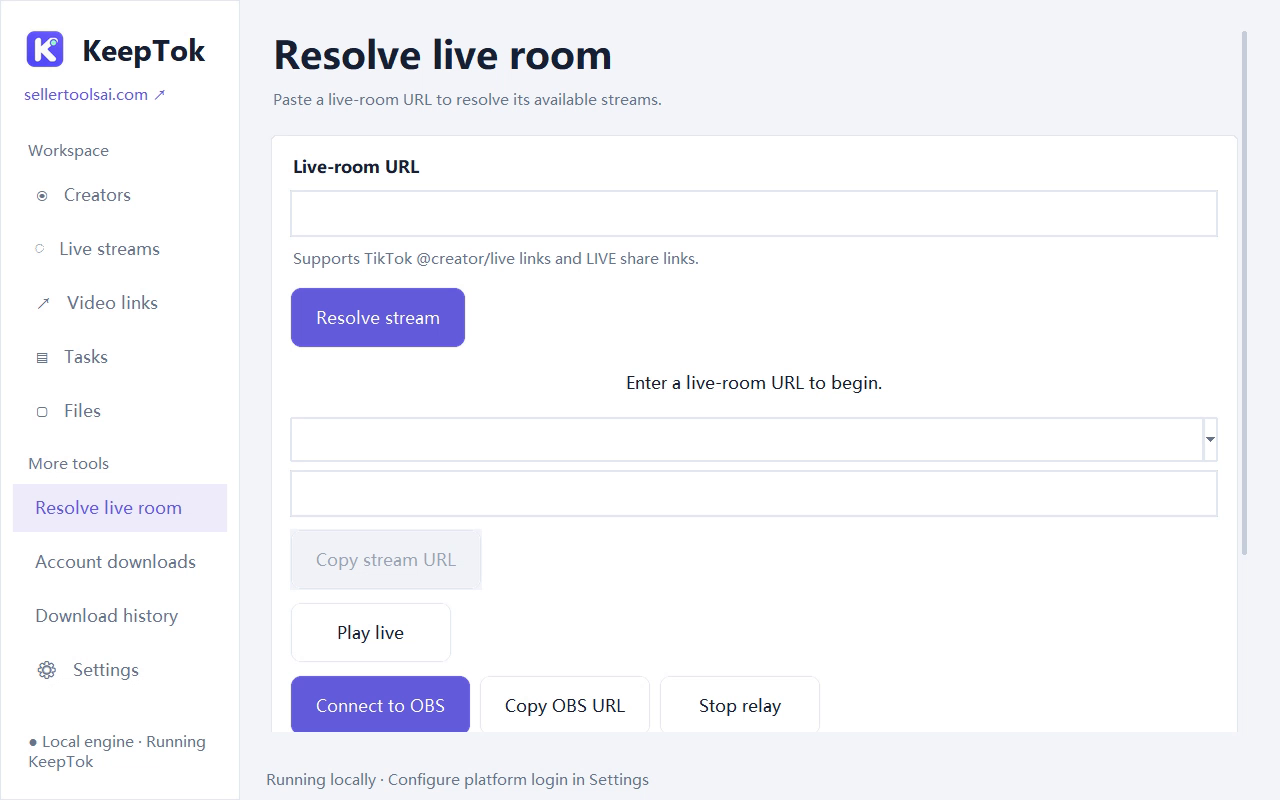
The same rule applies if you also use the local OBS relay: KeepTok must remain running on this PC. OBS relay and local recording are separate actions, and neither continues if the computer is asleep.
2. Stop Windows from sleeping or hibernating during the session
In Windows 11, open Settings → System → Power & battery and review screen, sleep and hibernate timeouts. For the LIVE window, keep sleep and hibernate off—or longer than the session you expect—especially while the PC is plugged in. The screen can turn off; the system itself must not suspend.
Also check battery saver or other power modes that may put the PC to sleep sooner than you expect. After the recording, you can restore your usual power settings.
3. Laptops: power, lid and lock screens
- Plug the laptop in when you plan a long LIVE. Battery policies often sleep the device earlier than the plugged-in plan.
- Review what Windows does when you close the lid. If lid close is set to sleep or hibernate, closing it will stop the recording even when KeepTok is in the tray.
- A lock screen or a turned-off display is usually fine if the PC stays awake. A remote-desktop session alone does not keep recording if the session locks or disconnects in a way that stops KeepTok.
4. Confirm the job is still running
- Check Task Center for an active recording or monitoring job, and leave enough free disk space.
- If the stream drops, segmentation and reconnect options in Settings may resume when the LIVE is accessible again; already written segments stay on disk. Gap-free capture is not guaranteed.
- Free includes 2 manual recordings per UTC day, up to 30 minutes each. Personal and Pro add automatic recording. Daily quotas reset at 00:00 UTC (08:00 Beijing time). Hitting a plan limit is expected behaviour, not a sleep problem. Confirm live details on the download page.
Related guides
Record TikTok LIVE locally ↗ · Automatically record TikTok LIVE ↗ · TikTok LIVE to OBS ↗ · Download KeepTok for Windows ↗