What you need before starting
Install KeepTok on 64-bit Windows 10 or 11 and install OBS Studio. Open the LIVE in your normal browser first. The creator must currently be broadcasting and the stream must be accessible on your network. If TikTok asks you to sign in, complete that in your regular browser and use the KeepTok extension to import the session. A Google login alone is not a TikTok session.
This guide covers a local source in OBS. It does not create a TikTok broadcast, supply a streaming key or grant permission to rebroadcast somebody else’s content. Record or publish only where you have the necessary rights.
1. Resolve the LIVE in KeepTok
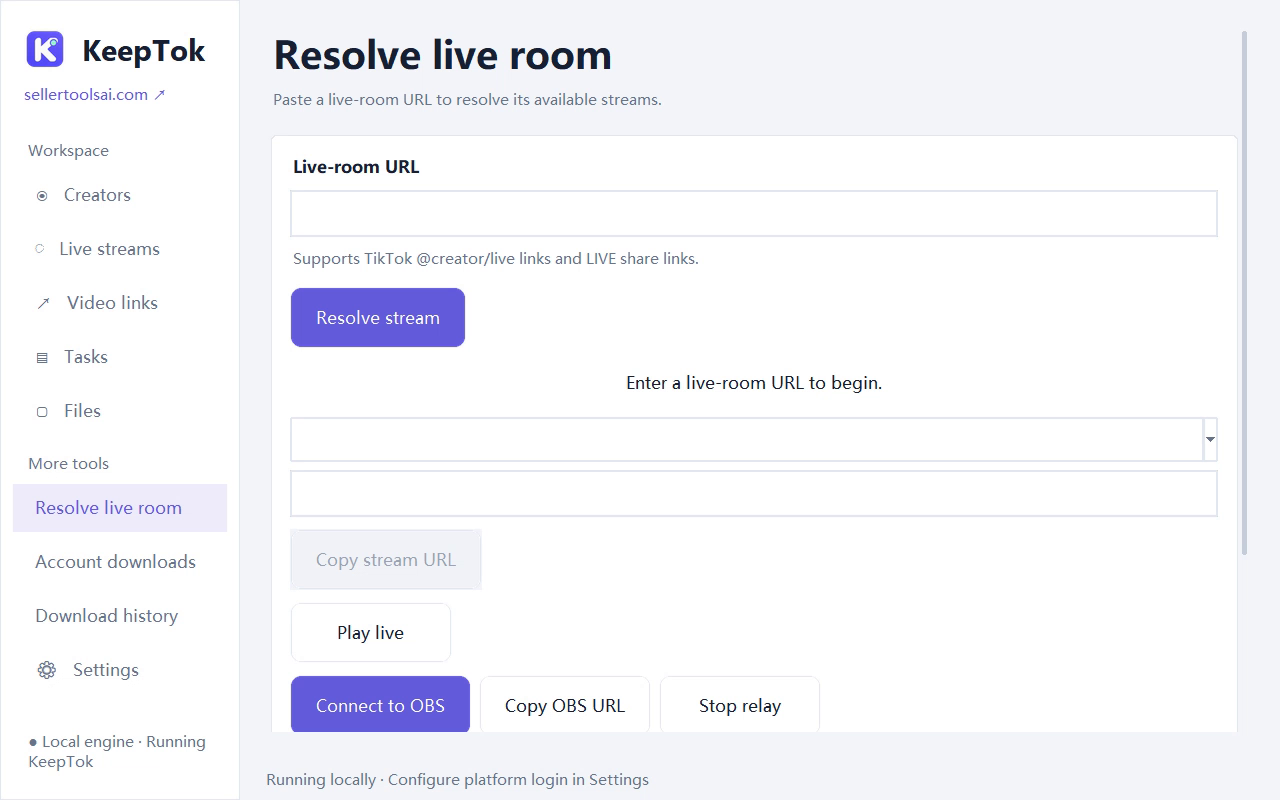
Open Resolve live room, paste the full TikTok creator LIVE URL, then choose Resolve stream. Keep the address private when taking screenshots. If the creator is offline or the platform denies access, stop here and check the original room; an empty stream list does not mean there is a working source to send to OBS.
Choose one of the returned sources. The available resolution, format and reliability depend on TikTok and the original broadcast. Choosing an HD-labelled source does not increase the quality beyond what the broadcaster provides.
2. Start the local relay
Select Connect to OBS in KeepTok and wait for the relay to report that it is running. Use Copy OBS URL to copy the address produced by the app. KeepTok may use a temporary local address; always copy the current one rather than saving an old address from a previous session.
KeepTok must remain open while OBS reads this source. The relay passes an accessible stream to a local player; it does not turn your PC into an unattended cloud recorder. If you stop the relay, close KeepTok or let the computer sleep, the OBS picture may stop.
3. Add an OBS Media Source
- In OBS, select the scene you want to use. In Sources, press + and choose Media Source. Give the source a recognizable name.
- In the source properties, turn off Local File. Paste the current address from Copy OBS URL into Input, then confirm.
- Wait for the first frames, fit the source to the scene, and check the Audio Mixer. Make a short local test recording before using the scene for real work.
OBS documents Media Source and its Local File setting in its official guide. Labels may differ with the OBS language and version. OBS Media Sources ↗
Black picture, no sound or a stopped stream?
First reopen the original TikTok room in your browser. If that fails, fix TikTok access or sign-in before changing OBS. Next check that KeepTok’s relay is still running, and recopy its current local URL. Confirm Local File is off and that Input contains the entire address. In OBS, make sure the source is visible in the current scene and its audio is not muted.
If a source becomes unavailable, resolve the LIVE again and select an available source. A creator ending the broadcast, session expiry, network interruption or platform change can stop the workflow. Do not disable Windows security protections as a troubleshooting step.
OBS relay and local recording are separate
Connecting a source to OBS does not by itself save a recording in KeepTok. Use the recording controls in the app that should save the file. Stop the recording cleanly, wait for finalization, then play the saved file and check both picture and sound. Keep enough free disk space and keep the computer awake.
Record a TikTok LIVE locally ↗ · Troubleshooting checklist ↗