Why this comparison matters
Searching for a TikTok video downloader often leads to paste-a-link websites. Those can work for a one-off public clip, but creators, editors and small teams usually need a repeatable Windows workflow: predictable folders, fewer unknown third-party pages, and a session imported from their own browser.
KeepTok is a desktop TikTok video downloader and LIVE recorder for 64-bit Windows 10/11. Files stay local. You can start on the Free plan, then upgrade with a one-time PayPal purchase when you need higher daily limits or account batch downloads.
Local desktop downloader: what you keep on the PC
- Downloads and recordings write to a folder you choose in Settings. You decide backup, naming and disk location.
- Sign-in uses the official KeepTok browser extension: complete TikTok login in Chrome or Edge, then import the current session into the app. A Google login alone is not a TikTok session.
- Task Center shows progress, failures and output folders on the same machine—useful when several people share a Windows workstation.
- The same app also covers accessible LIVE recording and an optional local OBS relay. Online paste sites typically do not.
Trade-offs: you install software, keep Windows awake for long jobs, and Free includes a daily video-download allowance (10 per day) plus manual-recording limits. Hitting a quota is different from a network failure.
Online / browser download sites: when they still make sense
- One public video, no recurring archive, and you accept visiting a third-party page.
- You cannot install desktop software on that PC right now.
- You only need a quick preview file and will re-download from a trusted workflow later.
Be cautious with unknown paste sites: avoid entering passwords there, do not install random “helper” browser add-ons from ad pages, and skip tools that promise private or restricted downloads. Prefer the official KeepTok site and extension when you want a signed-in desktop workflow.
Side-by-side checklist
- Privacy of files: local app writes to your disk; many websites process links on someone else’s server.
- Session handling: KeepTok imports a browser session you control; shady sites may ask you to paste cookies—decline that.
- Reliability for teams: desktop Task Center and a fixed save folder beat ad-heavy pages when you repeat the same job daily.
- Feature depth: batch browse of creator posts (Personal/Pro), LIVE record and OBS relay are desktop strengths.
- Cost honesty: Free is enough to try; paid KeepTok plans are one-time USD purchases via PayPal with no automatic renewal.
Recommended KeepTok path on Windows
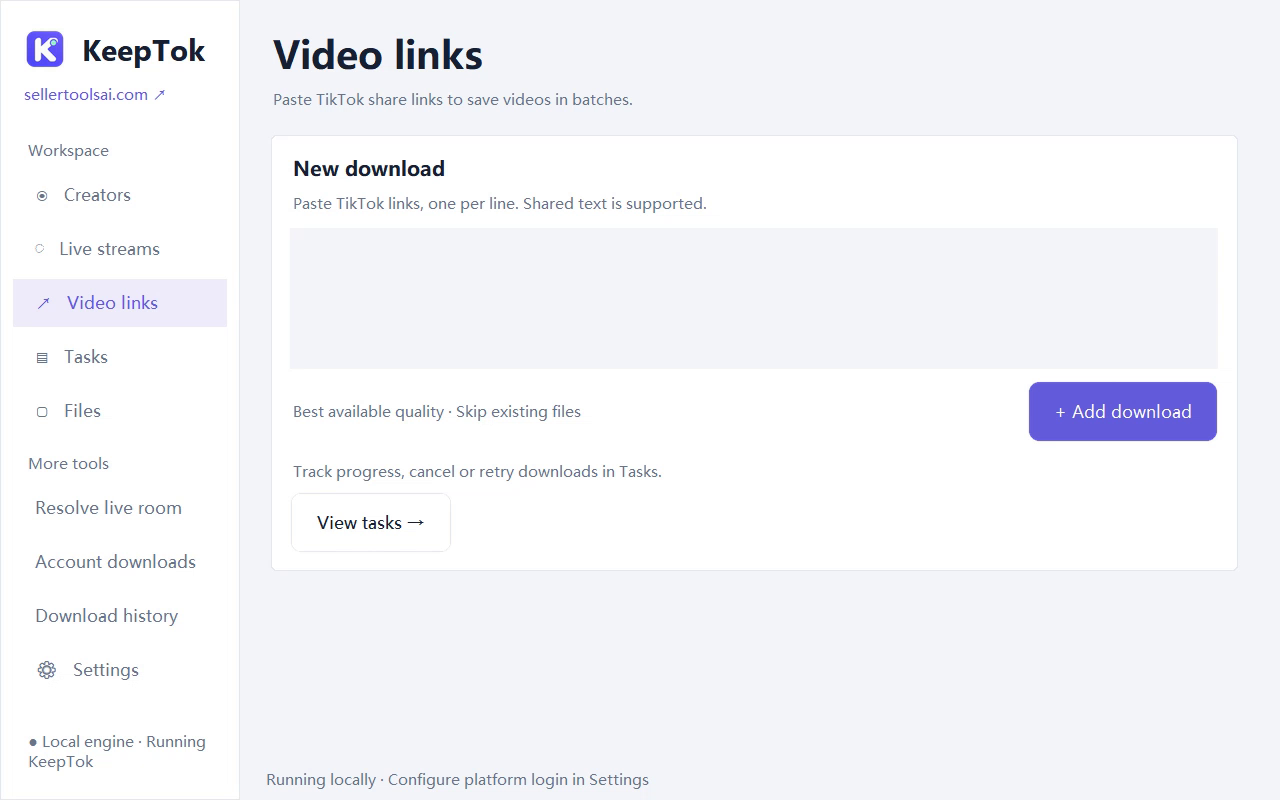
Install KeepTok from the official download page, choose a writable save folder, set up the browser extension when TikTok requires sign-in, then paste a video link you are allowed to save. For recurring creator archives, use Personal or Pro account batch downloads instead of repeating one-off web tools.
Follow the Windows get-started guide ↗ · Batch download TikTok videos ↗ · Troubleshooting checklist ↗
FAQ
Is a local TikTok downloader safer than an online site? Safer for keeping finished files under your control, and you avoid pasting links into unknown web apps. You still need a clean official installer and normal Windows security habits.
Do I need Personal or Pro for simple link downloads? No. Free and Lite include link downloads with daily quotas. Account batch downloads of a creator’s posts are included in Personal and Pro.
Can KeepTok open private or restricted TikTok content? No. Availability follows what your own signed-in browser session and network can access. The app does not bypass platform controls.