What this guide covers
KeepTok can keep downloading videos and recording an accessible TikTok LIVE after you hide the window. This walkthrough explains the difference between the system tray and a full exit, how to confirm a job is still running, and what still stops a background task. It does not add a Windows startup setting or a way to continue after the PC sleeps.
If you are starting your first download or LIVE recording, use those guides first, then return here to leave the app in the tray.
How to download TikTok videos on Windows ↗ · How to record TikTok LIVE on Windows ↗
Tray vs exit: what actually keeps working
Hiding KeepTok to the system tray is designed so downloads, local LIVE recordings, automatic monitoring on Personal or Pro, and the local OBS relay can continue on this PC. The window can be out of the way; the app itself must stay running.
Exiting KeepTok, ending the process in Task Manager, signing out of Windows, or shutting down the PC stops that work. A job that already finished stays on disk; a job that was still running does not continue after the app is gone.
1. Start the download or recording first
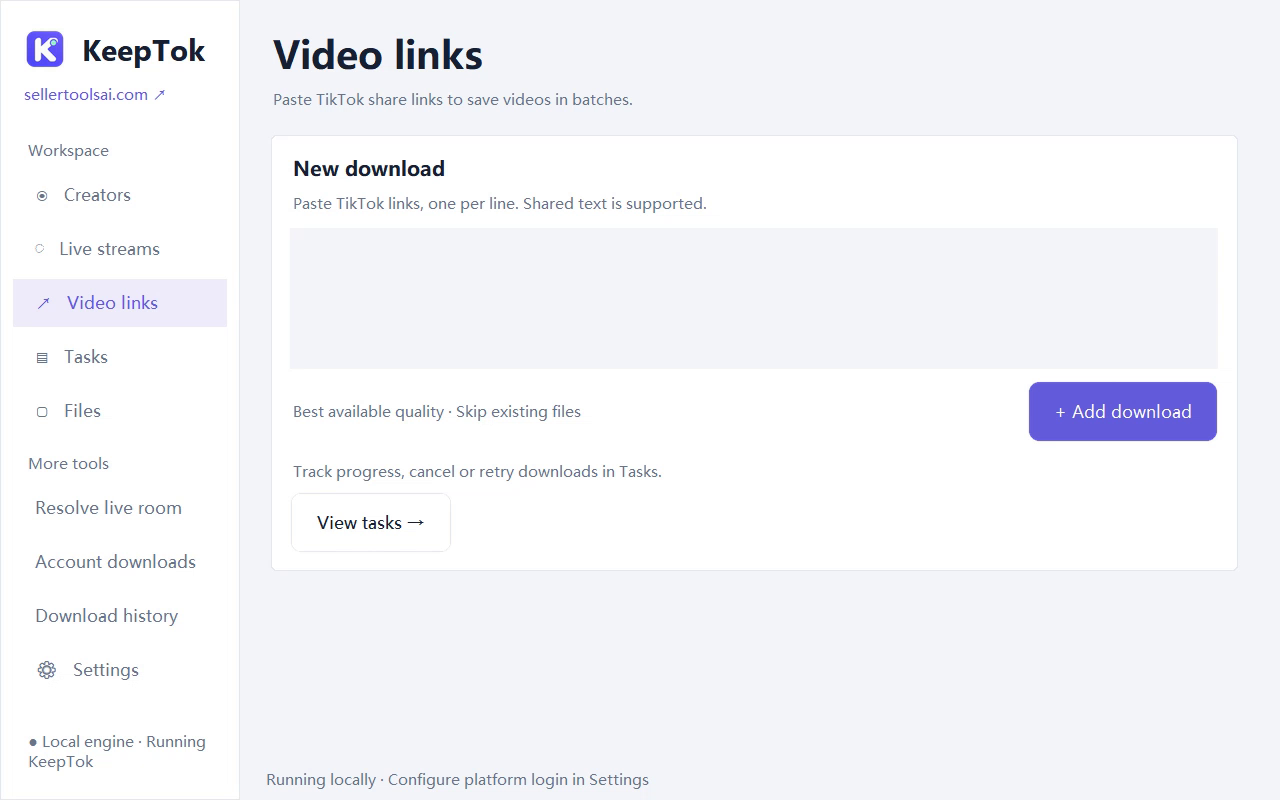
Paste a supported TikTok link or resolve an accessible LIVE, then start the task in KeepTok. Wait until Task Center shows the job as running before you hide the window. The tray does not start a new download or recording by itself.
On Personal or Pro, enable automatic LIVE recording and add the creators you are allowed to record before you leave the app in the tray. Monitoring only helps when the room is accessible with your current session and network.
2. Hide KeepTok to the system tray
Close or hide the KeepTok window to the Windows system tray. Tray mode is designed so monitoring, downloads and recordings can continue. You should still see KeepTok in the notification area, not as a closed process.
If you cannot find the icon, check the hidden icons overflow in the Windows taskbar. Exiting KeepTok or ending the process is not the same as hiding the window.
3. Confirm the task is still running
Open KeepTok from the tray and check Task Center. A download or recording that is still in progress should show an active status. When the job finishes, open the file from Tasks or Files and confirm it plays.
Saved videos usually go under your Save folder\Download\, and LIVE recordings under Save folder\Live\<creator name>\, often as .mkv files. Already finished files stay on disk even if you later exit the app.
What still stops a background job
- Windows sleep, hibernate or shutdown. Hiding the app to the tray does not keep a job running if the PC itself suspends. Review sleep, hibernate and lid settings for long recordings.
- A plan limit, a full or unwritable Save folder, an expired sign-in, or a LIVE that is no longer accessible. These are normal stops, not tray problems.
- Installing an update. Finish running tasks, then close KeepTok, including the tray icon, before you run the installer.
Keep Windows awake while recording TikTok LIVE ↗ · LIVE recording stopped? Fixes ↗ · How to update KeepTok ↗
FAQ
Can I close the KeepTok window and still download TikTok videos? Yes, if you hide the window to the system tray and leave the app running. A full exit stops the job.
Does the tray keep recording if the PC goes to sleep? No. The PC must stay awake. Tray mode only hides the window; it does not override Windows sleep or hibernate.
Does KeepTok start automatically with Windows? These guides do not describe a Windows startup setting. After a restart, open KeepTok again and resume the workflow you need, including automatic recording on Personal or Pro if you use it.
Related guides
Download TikTok videos ↗ · Keep Windows awake ↗ · Automatically record TikTok LIVE ↗ · Find saved downloads ↗