What “stopped” can mean
A recording problem is not always a failed file. First look at the exact task message in Tasks, then decide which case you have:
- The job never entered Recording, or it failed while resolving the room.
- The recording started, then stopped before you clicked Stop recording.
- You expected one file, but KeepTok wrote several segments. That can be normal.
This page is a checklist for those cases. For the basic recording steps, or for keeping Windows awake, use the guides linked below.
General LIVE recording guide ↗ · Keep Windows awake while recording ↗
1. Confirm the LIVE is still accessible
Open the same creator LIVE page in your usual browser. The creator must be broadcasting now, and the room must load on this computer and network. If TikTok shows that the LIVE has ended, is private, or is unavailable, KeepTok cannot continue or reconstruct it.
Copy a fresh LIVE URL from the current room if you need to resolve it again. Do not reuse an old share link from a previous broadcast.
2. Recheck TikTok sign-in
If the browser needs you to sign in to watch the LIVE, KeepTok needs a current session too. In Settings, run Check sign-in. Saved only means a session was stored; verified means the platform check passed. Import a fresh session if the status is stale or the original room started asking for a login.
3. Keep the app running and the PC awake
Leave KeepTok running for the whole job. Hiding the window to the tray is fine; exiting the app stops the recording. If Windows sleeps, hibernates, or a laptop lid is set to sleep, the job stops even when the tray icon was visible.
The screen can turn off. The computer itself must stay on, and a laptop should stay plugged in when you can.
4. Check plan limits, disk space and the save folder
Free includes 2 manual recordings per UTC day, each up to 30 minutes. Lite raises the daily count and the per-session limit, still without automatic recording. Personal and Pro add automatic recording; Personal has a longer per-recording limit, and Pro does not impose a plan length cap. Daily quotas reset at 00:00 UTC (08:00 Beijing time).
Hitting a plan limit is expected: files already written are kept, and the job stops. Confirm live plan details on the download page. Also make sure the Save folder is writable, has enough free space, and—if it is on an external drive—that the drive stayed connected.
5. Tell expected segments from an unexpected stop
If segment minutes is greater than 0 (the default is 30), a long LIVE is split into several .mkv files under Save folder\Live\<creator name>\. Several files after a long session can be normal, not a crash. Open Tasks or Files, play each segment, and check picture and audio.
A stream address can also expire while the creator is still live. In that case, resolve the current room again, choose an available quality, and start a new recording. Already saved segments stay on disk. Settings → Downloads & recording also includes reconnect options; they can help after a short interruption, but they cannot recover a LIVE that has ended.
How to restart a recording cleanly
- Confirm the creator is still live in your browser and that sign-in is verified if the room requires it.
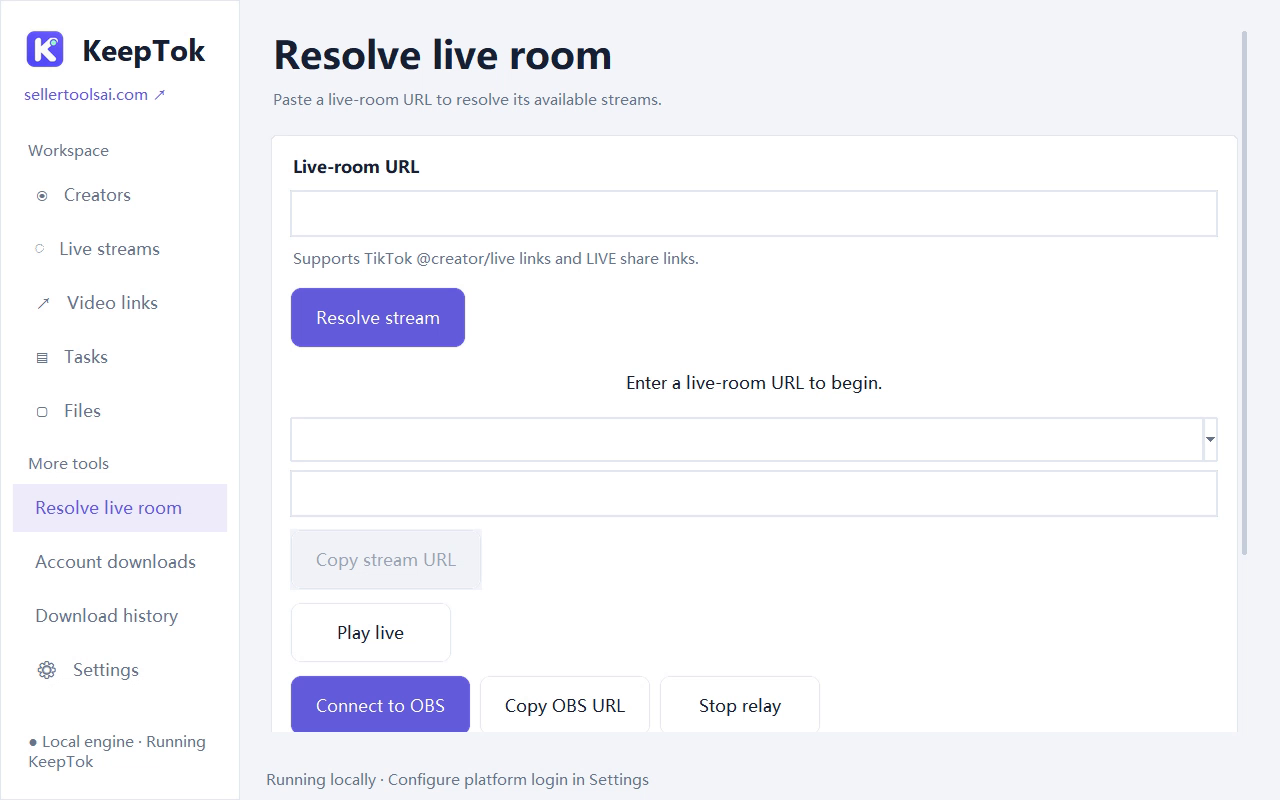
- In KeepTok, open Resolve live room or Live streams, paste the current LIVE URL, and choose Resolve stream.
- Pick an available quality and click Start recording. You do not need Connect to OBS to write a local file.
- Leave KeepTok running or in the tray, keep the PC awake, then stop cleanly and wait for the task to finish before opening the file.
FAQ
Can KeepTok recover a LIVE that already ended? No. It can only keep what it already saved on this PC. If the room has ended and you have no file, there is nothing to reconstruct.
Why do I have several files instead of one? Segmented recording is expected when segment minutes is greater than 0. Check the timestamped .mkv files in the creator’s Live folder.
Does connecting to OBS save a file if the KeepTok recording stops? No. Connect to OBS and local recording are separate. An OBS relay does not, by itself, write a KeepTok recording file.
Related guides
How to record TikTok LIVE on Windows ↗ · Keep Windows awake while recording ↗ · Record TikTok LIVE without OBS ↗ · Troubleshooting checklist ↗