From installation to your first saved file.
Start with Free. No purchase required.
Install KeepTok
Download the Windows 10 / 11, 64-bit installer from this website. The current public installer is unsigned. If Windows blocks it, do not disable your antivirus or system protections.
Choose a save folder
Open Settings and choose a writable download folder with enough free space. Save your settings.
Set up TikTok sign-in
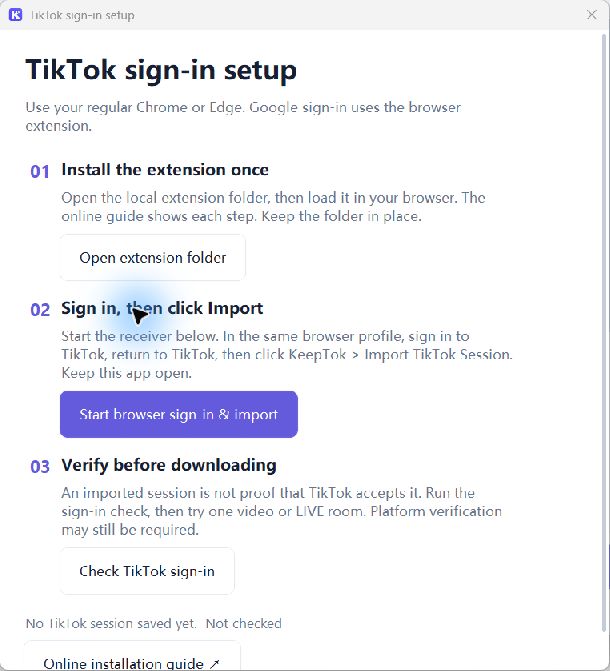
Install the KeepTok extension in your regular Chrome or Edge. Start Browser sign-in & import in KeepTok Settings. Sign in to TikTok in that browser, return to TikTok, then click Import TikTok Session in the extension. Google sign-in uses the same route.
Check sign-in
Click Check sign-in in Settings. Saved only means the session was stored; verified means the platform check passed. Follow any network or verification instructions.
Download your first TikTok video
Copy a video link from TikTok for content you own or have permission to save. In KeepTok, open Link parsing, paste the link and submit it. Watch progress in Task Center. When it finishes, open the save folder and play the file. Free includes 10 video downloads per day; batch downloads and automatic recording require an eligible paid plan.
Record your first LIVE
Use a stream you own or have permission to record. Open LIVE room parsing, paste the live URL, resolve it, choose an available quality and start recording. Keep KeepTok running and your computer awake. Free allows two manual recordings daily, up to 30 minutes each.
If a TikTok download fails
Check that the same link opens in your normal browser and that the video is still available. Recheck TikTok sign-in in Settings, confirm that the save folder is writable and review the task error before retrying. Private, deleted or inaccessible content may not be downloadable. KeepTok cannot bypass platform access restrictions or recover a LIVE that has already ended.
Check the saved file
Stop recording and wait for the task to finish. Open File Manager or the save folder and play the file to check picture and audio. OBS relay and local recording are separate actions.
Install a TikTok downloader on Windows 11 ↗ · Keep Windows awake while recording TikTok LIVE ↗
Client workflow demo
This narrated KeepTok 1.1.14 interface tour shows video links, tasks, local files, sign-in settings and LIVE controls. Inputs are empty for privacy. It does not demonstrate a completed download or active LIVE relay.
Practical TikTok guides
How to install a TikTok downloader on Windows 11 ↗
Back up your TikTok videos on Windows ↗
Watch TikTok videos offline on Windows ↗
Local vs online TikTok downloader ↗
Batch download TikTok videos on Windows ↗
Automatically record TikTok LIVE on Windows ↗
Change the TikTok download folder on Windows ↗
Record TikTok LIVE on Windows without OBS ↗
Keep Windows awake while recording TikTok LIVE ↗
Free vs paid TikTok downloader plans ↗