You do not need OBS to save a local file
KeepTok can record an accessible TikTok LIVE itself. Choose a quality, click Start recording, and the app writes a local file—usually an .mkv—under your Save folder. OBS Studio is not part of that path.
This page is for people who searched for a way to record TikTok LIVE without OBS, or who only need a file they can play later. It is not a replacement for the general recording walkthrough, the OBS relay guide, or automatic recording on Personal or Pro.
General LIVE recording guide ↗ · TikTok LIVE to OBS ↗ · Automatic LIVE recording ↗
When local recording is enough — and when you would still use OBS
Use KeepTok’s local recording when you want a file on this PC: an archive of your own LIVE, a review copy, or footage you will edit later. The recording runs in KeepTok, and you open the result from Tasks or Files.
Use the optional OBS workflow when you need OBS features that KeepTok does not provide: a scene with overlays, a layout you already use, a mix with other sources, or sending a program feed somewhere else. In that case KeepTok can start a local relay, and you add it in OBS as a Media Source with Local File turned off.
The two actions are separate. Connect to OBS does not, by itself, save a recording in KeepTok. Start recording does not, by itself, send the stream into OBS. You can use either one, or both at the same time, on the same accessible LIVE.
Before you start
- Install KeepTok on 64-bit Windows 10 or 11 from the official download page. The desktop package includes FFmpeg, which local recording uses. If Settings later says FFmpeg is missing, choose ffmpeg.exe there and save.
- In Settings → Downloads & recording, choose a writable Save folder with enough free space. LIVE files go to Save folder\Live\<creator name>\.
- If TikTok requires sign-in to watch the LIVE, import a session with the KeepTok browser extension and run the sign-in check. A Google login alone is not a TikTok session.
- Open the LIVE in your usual browser first. The creator must be broadcasting now, and the room must be accessible on your network. KeepTok cannot recover a past LIVE that was never saved.
1. Resolve the LIVE in KeepTok
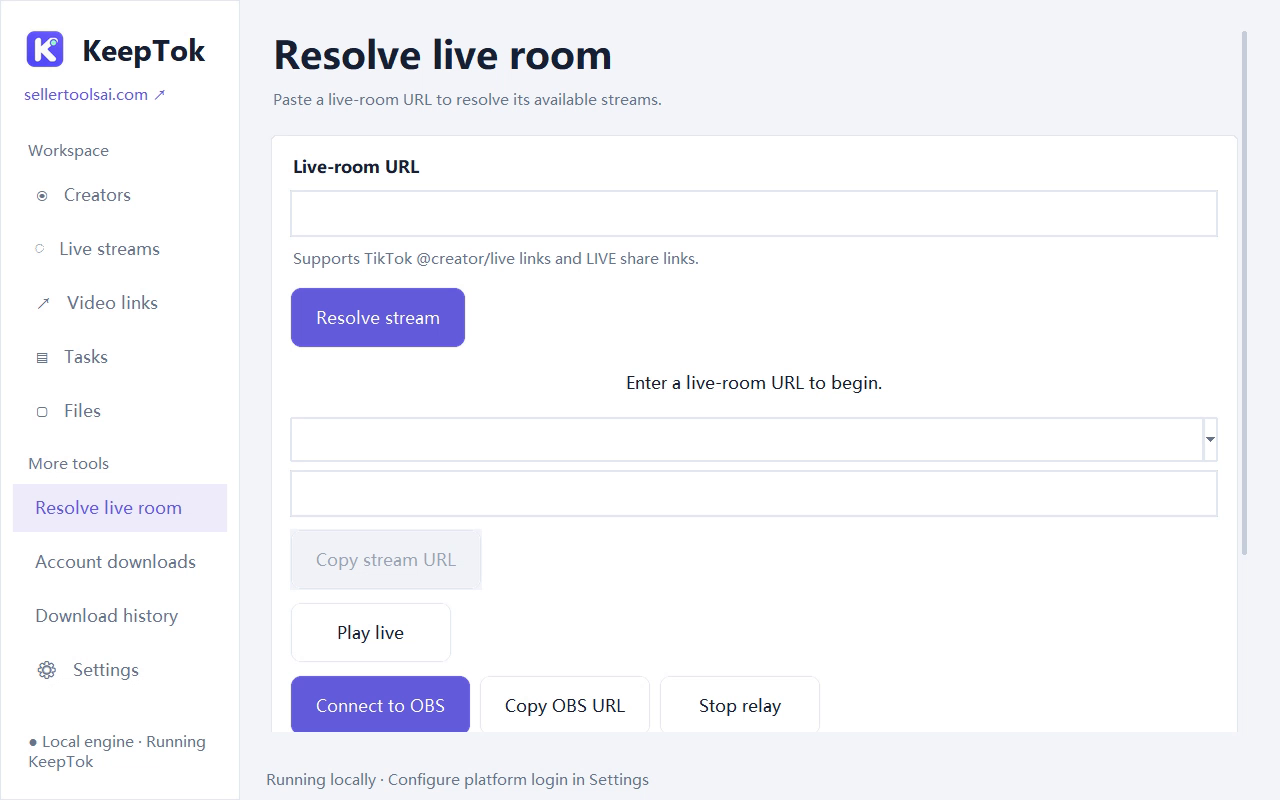
Open Resolve live room, paste the full TikTok creator LIVE URL—such as a https://www.tiktok.com/@creator/live address or a supported LIVE share link—then choose Resolve stream. Keep the address private in screenshots.
If you already added the creator, you can also use Live streams, then resolve the current room from there. If the creator is offline or the platform denies access, stop and check the original room in your browser; an empty quality list does not mean there is a file to save.
Choose one of the returned sources. Available resolution and format depend on TikTok and the original broadcast.
2. Click Start recording — not Connect to OBS
After a quality is selected, click Start recording. You should see the job in Tasks, with a Recording status while it runs. You do not need to click Connect to OBS, copy an OBS URL, or open OBS Studio for this file to be written.
Leave KeepTok running. Hiding the window to the tray is fine; exiting the app stops the job. Keep the PC awake so Windows does not sleep mid-stream.
3. Stop cleanly and open the local file
Click Stop recording, then wait until the task finishes. Segmented recordings may create several files; that is expected when segment minutes is greater than 0 (the default is 30). Open Tasks or Files, jump to the output folder, and play a file to check both picture and sound.
Files are saved under your Save folder in a Live\<creator name>\ directory. Changing the Save folder later does not move recordings that are already on disk.
Plan limits for manual recording
Free includes 2 manual recordings per UTC day, each up to 30 minutes. Lite raises that to 5 manual recordings per day and a longer per-session limit, still without automatic recording. Personal and Pro add automatic recording when a monitored creator goes live; Personal allows a longer per-recording limit, and Pro does not impose a plan length cap.
Daily quotas reset at 00:00 UTC (08:00 Beijing time). Hitting a plan limit is expected product behaviour: already written files are kept, and the job stops. Confirm live plan details on the download page.
Free vs paid KeepTok plans ↗ · Automatic LIVE recording ↗ · Download KeepTok for Windows ↗
If the recording does not start or stops early
First reopen the original TikTok room in your browser. If that fails, fix access or sign-in before changing KeepTok. Then confirm you clicked Start recording, KeepTok is still running, the PC did not sleep, the Save folder is writable, and you have not reached a plan limit. If a stream address expires, resolve the room again and start a new recording.
Related guides
How to record TikTok LIVE on Windows ↗ · TikTok LIVE to OBS ↗ · Automatically record TikTok LIVE ↗ · Keep Windows awake while recording ↗