What this guide covers
After KeepTok resolves a live room, it can show more than one source. This walkthrough shows how to pick a quality, what an HD label means, and what to do if the list is empty. It does not add a converter, and it does not promise a fixed resolution such as 1080p.
For the full recording workflow, including plan limits and 30-minute segments, use the LIVE recording guides. This page focuses on choosing a source before you click Start recording.
How to record TikTok LIVE on Windows ↗ · Record without OBS ↗
1. Resolve the live room
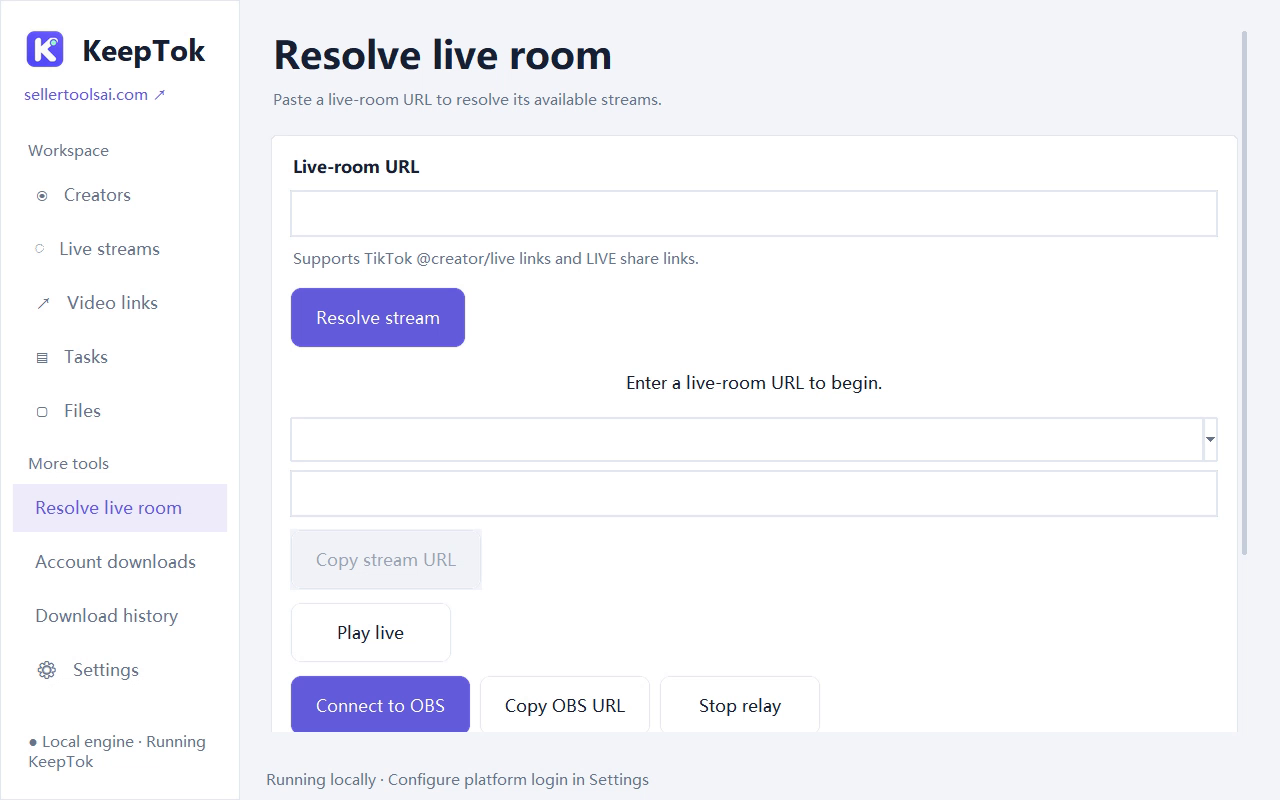
Open Resolve live room, paste the current TikTok LIVE URL, and choose Resolve stream. Make sure the same room opens in your usual browser with your current sign-in and network. If the creator is offline, private or blocked in the browser, KeepTok cannot invent a source to record.
Import a TikTok session and run the sign-in check when the platform requires login. A Google login alone is not a TikTok session.
2. Pick an available quality
Choose one of the returned sources before you start recording. Available resolution, format and reliability depend on TikTok and the original broadcast. Choosing an HD-labelled source does not increase the quality beyond what the broadcaster provides.
If several sources appear, pick the one that is available and stable enough for your archive. A higher label is not useful if that source fails, stalls, or is not actually offered for your session.
3. Start local recording and check the file
After a quality is selected, click Start recording. You should see the job in Tasks, with a Recording status while it runs. You do not need Connect to OBS to write a local file. Leave KeepTok running or in the tray, and keep the PC awake.
Stop cleanly, wait for the task to finish, then open the file from Tasks or Files. LIVE recordings usually go under Save folder\Live\<creator name>\ as .mkv files. Play the segment and check both picture and sound.
Run KeepTok in the background ↗ · Play TikTok LIVE recordings ↗
If the quality list is empty
An empty quality list does not mean there is already a file to save. Open the original room in your browser first. If TikTok denies access there, fix sign-in or network before resolving the room again.
If the room is still live and accessible, resolve the current URL again and wait for sources to appear. Then pick a quality and start a new recording. Already written segments stay on disk.
LIVE recording stopped? Fixes ↗ · Download and access troubleshooting ↗
FAQ
Can KeepTok record a TikTok LIVE in HD? KeepTok can record an available source, including an HD-labelled one when it is offered. The file cannot be sharper than the original broadcast your session can access.
Does choosing a quality change the file format? LIVE recordings are usually saved as .mkv files. Quality selection chooses an available source; it does not add a format converter inside KeepTok.
Do I need OBS to choose recording quality? No. Resolve the room, pick a quality, and click Start recording to write a local file. Use Connect to OBS only when you want the local relay in OBS.
Related guides
Record TikTok LIVE locally ↗ · Record without OBS ↗ · How long can you record? ↗ · Play LIVE recordings ↗